Tutorial — your first relevance study with RelyLoop¶
In this tutorial you'll go from git clone to "PR opened in GitHub" in under
30 minutes on a fresh laptop. You'll register a local Elasticsearch cluster,
generate LLM relevance judgments against 1,000 sample products, run a 10-trial
Optuna study to tune multi_match field boosts, read the LLM-generated
digest, and (optionally) open a PR against the public
SoundMindsAI/relyloop-test-configs
config repo with the recommended parameters.
This is the same operator path the smoke test exercises in CI on every PR — if you hit a step that doesn't work, file an issue and link this guide.
Step 0 — Prerequisites¶
| Requirement | Details |
|---|---|
Docker (incl. docker compose v2) |
24+ — make up orchestrates 7 containers |
| 16 GB RAM | Elasticsearch + OpenSearch each consume ~1 GB; 8 GB will OOM |
| One LLM provider (see below) | Required for judgment generation + digest narrative |
git and make |
Standard host tooling |
| GitHub Personal Access Token (PAT) | Optional — only needed for Step 10 ("Open PR") |
You need one of these LLM provider paths:
Path A — Hosted OpenAI¶
Default model is gpt-4o-mini. Cost ceiling for the full tutorial:
~$0.05 (5-query judgment generation + 10-trial study + digest narrative).
Path B — Local LLM (Ollama / LM Studio / vLLM / TGI)¶
Easiest (fast): install Ollama natively (Metal on macOS),
ollama pull qwen3.5:4b, then RELYLOOP_LLM=ollama make up — RelyLoop detects your
host Ollama and wires the app at it, no key. If none is found it comes up LLM-free
with guidance. Zero-install fallback (slow, CPU-only): RELYLOOP_LLM=ollama-docker.
See the README "LLM features" section. To point at a cloud/remote endpoint instead,
set OPENAI_BASE_URL yourself (this skips native detection):
Set OPENAI_BASE_URL and OPENAI_MODEL in .env before make up. Example
for Ollama:
echo 'OPENAI_BASE_URL=http://host.docker.internal:11434/v1' >> .env
echo 'OPENAI_MODEL=llama3.1:70b-instruct' >> .env
echo 'placeholder' > ./secrets/openai_key   # local servers don't validate the key
The startup capability check probes your local endpoint and surfaces missing
capabilities (chat / function-calling / structured-output) in /healthz.
Important: judgment generation needs structured-output support — pick a
model from the tested matrix in
docs/01_architecture/llm-orchestration.md §"OpenAI-compatible endpoints".
If your local model lacks structured output, judgment generation will surface
LLM_PROVIDER_INCAPABLE and you'll need to use Path A or a different model.
Both paths are first-class. The rest of the tutorial is identical regardless of which one you pick.
Path C — Run the tutorial against Apache Solr (MVP2)¶
The tutorial defaults to Elasticsearch, but every step works against
Apache Solr. The local Compose stack brings up solr:10.0 on
127.0.0.1:8983 alongside the Elasticsearch + OpenSearch containers.
To pick Solr instead:
make up—bootstrap-security.shgenerates the Solr admin credentials on first boot.make seed-solr— creates theproductscollection (UBI + LTR enabled via therelyloop_productsconfigset) + theubi_queries/ubi_eventsUBI collections, then bulk-indexessamples/products.json.make seed-clusters— registerslocal-solras a cluster row alongsidelocal-esandlocal-opensearch.- In the create-study modal, pick
local-solrfrom the cluster dropdown and pick theproducts_edismaxtemplate (orproducts_dismax/products_lucene). Search-space dimensions match the ES path (title_boost,description_boost,bullet_points_boost,tie,mm).
The Optuna loop runs unchanged — the engine difference is hidden behind
the SolrAdapter. See
solr-cluster-registration.md
for the runbook covering /reprobe, LTR model upload, and the optional
UBI on-ramp.
Step 1 — Clone + make up¶
make up runs scripts/install.sh (auto-generates required secrets +
placeholder optional ones), then docker compose up -d. First-run cold time:
~90 seconds. Brings up 7 containers: postgres, redis, api, worker,
elasticsearch, opensearch, ui. The first run also builds the ui
image locally (~3–5 min cold; cached on subsequent runs).
Wait until the API is healthy:
If /healthz shows subsystems.openai = missing_key, you skipped Step 0
Path A or Path B — go back and configure one before continuing.
If something went wrong: check docker compose ps for any container in
Restarting. If Elasticsearch keeps crashing, your host probably needs more
RAM allocated to Docker Desktop (Settings → Resources → at least 8 GB).
make logs tails the api + worker logs.
Step 2 — make migrate¶
Applies the Alembic chain to the head revision (currently
0007_conversations_messages) and initializes the Optuna RDB schema. Without
this, every API call returns 500 with relation "..." does not exist.
If something went wrong: if make migrate errors with
api container is not running, the API container failed Step 1 — re-run
make up and check make logs.
Step 3 — make seed-clusters¶
Registers two cluster rows: local-es (Elasticsearch 9 at
http://elasticsearch:9200) and local-opensearch (OpenSearch 2 at
http://opensearch:9200). Idempotent — safe to re-run.
You can also register a cluster via the UI at
http://localhost:3000/clusters, but the
seed script saves you the form-filling.
Must run before Step 4 because seed_es.py resolves the cluster URL via
cluster_repo.get_active_cluster_by_name("local-es").
If something went wrong: if both clusters fail with ClusterUnreachable,
your Elasticsearch / OpenSearch containers haven't finished their healthchecks
yet. Wait 30 seconds and try again.
Step 4 — make seed-es¶
Wraps docker compose exec api python -m backend.app.scripts.seed_es. Loads
1,000 sample products (Amazon ESCI subset, CC-BY-4.0) from
samples/products.json into the local-es products index. Idempotent —
DELETE+recreates the index every run, so re-running with edited samples
cleanly removes orphans.
Verify the count:
If something went wrong: if the script reports local-es cluster not
registered, you skipped Step 3.
Step 5 — Create a query set from samples/queries.csv¶
Open the UI:
Click "Create query set" and fill the form:
- Name:
tutorial_queries - Cluster: pick
local-esfrom the dropdown — no UUID typing required; the field is a searchable list of every cluster the API knows about, with health-status dots so you can see at a glance which clusters are reachable - Description: anything (e.g. "Tutorial queries from ESCI")
Submit. On the query-set detail page, click "Add queries" and
upload samples/queries.csv — the dialog accepts JSON or CSV with the
file's query_id,query_text shape directly.
48 queries should now be attached to the query set.
You can do the same via the API. The example below resolves the cluster's UUIDv7 from the registry first, then posts the query set using a shell variable — no manual UUID copy-paste:
# Resolve the cluster UUID from its name (no copy-paste, no typos).
LOCAL_ES_ID=$(curl -s http://localhost:8000/api/v1/clusters \
  | jq -r '.data[] | select(.name=="local-es") | .id')

QS_ID=$(curl -s -X POST http://localhost:8000/api/v1/query-sets \
  -H "Content-Type: application/json" \
  -d "{\"name\":\"tutorial_queries\",\"cluster_id\":\"$LOCAL_ES_ID\",\"description\":\"ESCI tutorial\"}" \
  | jq -r .id)

curl -X POST http://localhost:8000/api/v1/query-sets/$QS_ID/queries \
  -H "Content-Type: application/json" \
  -d "$(jq -Rsn --rawfile csv samples/queries.csv \
        '{queries: ($csv | split("\n") | .[1:] | map(select(length>0)) | map(split(",") | {query_text: .[1]}))}')"
If something went wrong: if LOCAL_ES_ID came back empty, the
cluster wasn't registered — re-run Step 4 first.
Step 6 — Generate judgments via LLM¶
This is the only LLM round-trip the tutorial walks you through. Cost is
~$0.01–$0.05 with gpt-4o-mini against a 5-query subset (or all 48).
In the UI, open the query-set detail page you created in Step 5 (e.g.
http://localhost:3000/query-sets/<id>) and click "Generate judgments"
in the associated-judgment-lists card. Fill in:
- Cluster:
local-es - Target index:
products - Current template: create one in Step 7 first if needed (or use the
smoke template in
samples/templates/product_search.j2) - Rubric:
Rate 0-3 by relevance to the query.
Click Generate. The judgment-list status moves through
generating → complete (~30–60s).
If you see OPENAI_NOT_CONFIGURED: you skipped Step 0 — populate
./secrets/openai_key (or OPENAI_BASE_URL for local LLM) and
make down && make up.
If you see LLM_PROVIDER_INCAPABLE: your local model doesn't support
structured output. Switch to a model from the tested matrix in
llm-orchestration.md.
Step 7 — Create a query template¶
Open:
Click "Create template". Paste the contents of
samples/templates/product_search.j2 into the Body
field. The template renders an Elasticsearch multi_match query with
three declared params:
| Param | Type | Range |
|---|---|---|
title_boost |
float | 0.5 – 10 |
description_boost |
float | 0.5 – 10 |
bullet_points_boost |
float | 0.5 – 10 |
tie_breaker and fuzziness are intentionally hard-coded in the template so
the search-space stays under the platform's 10^6 cardinality cap on a
10-trial budget. To tune them too, switch to a 30-trial study and pull them
into the search-space.
Submit. Note the template ID for Step 8.
Step 8 — Open /chat and ask the agent to tune¶
Send a message like:
Tune
product_search v1againsttutorial_queriesonlocal-es:products, max 10 trials.
The agent will introspect the cluster + judgment list, propose a
create_study tool call with a search-space, and ask you to confirm.
Reply "yes". The study queues immediately.
The chat agent is one of two ways to create a study; you can also click
"Create study" on /studies directly.
The 5-step wizard auto-fills Step 4 ("Search space") from the selected
template's declared params, so you only need to tweak the JSON if the
defaults don't match the ranges you want to tune — no paste-from-file
step required.
Step 9 — Watch the study run + read the digest¶
Open:
Click the study you just created. The detail page shows trials filling in real-time (10 total, ~30 seconds each).
A few orientation surfaces above the panels:
- Linked entities row — named, clickable links to the cluster, query set, judgment list, and template this study ran against. Click any to drill into the source of truth.
- View-proposal link — once you promote a proposal (Step 10), a
Proposal: view proposal (<status>)link appears below the header for the round-trip from study → proposal. - Glossary tooltips —
(i)icons next to Target, Trials, Best metric, and other column headings. Hover for the short definition; the Guide button (bottom-right) opens the full glossary.
Once status = completed, the digest tab renders:
- Narrative summary — 2–3 sentences describing what won and why
- Recommended config —
*.params.jsonshape, ready to paste into your search-config repo - Parameter importance — bar chart from Optuna's importance evaluator
The Confidence panel sits between the trials table and the digest.
It tells you whether the winner is statistically reliable: the headline
metric with a 95% CI band, per-query outcome chips
(X Improved · Y Unchanged · Z Regressed), named Queries that
improved and Queries that regressed tables, and three secondary
callouts (runner-up gap, late-trial 1σ, convergence regime). Every
(i) icon opens a glossary definition. For a 5-query smoke-test study
the CI band will be wide and that's honest; the value is in seeing
which queries gained and lost, not just the aggregate lift.
If the digest narrative is empty or you see OPENAI_NOT_CONFIGURED in the
worker logs, your LLM provider is misconfigured — re-do Step 0.
Stop here if you don't have a GitHub PAT. You've completed the Karpathy loop end-to-end. Step 10 is the optional "ship it" path.
Step 10 — (Optional) Click "Open PR"¶
In the study's digest, click the "Promote to proposal" button on the recommended config. You're routed to the proposal detail page; click "Open PR" in the top-right.
This opens a Pull Request against the public
SoundMindsAI/relyloop-test-configs
repo with the recommended params written into the corresponding
*.params.json file. GitHub PATs are registered per config_repo: drop
the PAT at ./secrets/<auth_ref> (the same auth_ref you provided when
registering the config repo via POST /api/v1/config-repos). Without
the per-repo PAT file the button surfaces a configuration error —
that's the only step that needs write access to the repo.
To use your own config repo: register it via the API (no UI form ships in
MVP1) with your fork's URL + an auth_ref value, drop the PAT at
./secrets/<auth_ref>, then re-run from Step 8.
curl -X POST http://localhost:8000/api/v1/config-repos \
  -H "Content-Type: application/json" \
  -d '{"name":"my-config-fork","provider":"github","repo_url":"https://github.com/<you>/<repo>","config_path":"params/","auth_ref":"my_pat"}'
Step 11 — (Optional) Upgrade your judgment list to UBI¶
This step is optional and requires an instrumented cluster. The tutorial completes fully on the LLM path (Steps 1–10) with no UBI cluster. If you have a cluster running the OpenSearch UBI plugin (or the o19s ES UBI fork) with captured click/dwell traffic, you can swap the LLM-graded judgment list for one derived from real user behavior — no LLM cost for the pure converters.
- On the query-set detail page, click Generate judgments again.
- The dialog now shows a Method picker. If your cluster has UBI
traffic for the target index, the picker defaults to a UBI converter
based on the readiness rung (dense traffic →
UBI (click-through); sparse →Hybrid UBI + LLM). If the cluster has no UBI plugin, you'll see the on-ramp nudge with install instructions and the picker stays onLLM-as-judge. - Pick Hybrid UBI + LLM to rate the dense head from clicks and let the LLM fill the long tail (requires a template + rubric, same as the LLM path). Set the UBI window (defaults to the last 30 days).
- Submit. When generation completes, the judgment-list detail page shows a "What real signals bought you" value-delta card comparing the UBI coverage against your prior LLM list.
- Re-run your study (Step 8) against the new judgment list to see how the recommendation shifts when grounded in real behavior.
See the UBI judgment-generation runbook for per-engine plugin install + converter selection guidance.
Demo data: synthetic UBI is pre-seeded on three of four demo clusters¶
If you ran make seed-demo (or clicked Reset to demo state on the
dashboard), three demo clusters already carry synthetic UBI
clickstream so this step is browser-walkable without a real
instrumented cluster:
acme-products-prodreportsrung_3— the picker defaults toUBI (click-through)and the resulting judgment list grades against the synthetic events end-to-end.corp-docs-search(rung_1) andjobs-marketplace-prod(rung_2) default toHybrid UBI + LLMso the LLM fills the long tail.news-search-stagingstays atrung_0— the on-ramp nudge appears with engine-specific install guidance. Use this cluster to see what the no-UBI path looks like before you instrument your own.
Every UBI surface on the three synthetic clusters carries a
"Synthetic demo data" chip with a tooltip explaining the data was
fabricated by the demo reseed. The chip never appears on real operator
clusters or on news-search-staging.
Compare LLM vs UBI on the same dataset¶
Once you've run two studies on the same query set — one against an LLM-graded judgment list and one against a UBI list — RelyLoop can show them side by side. On either study's detail page a "Compare with the {UBI|LLM} study" button appears (it's hidden until a valid counterpart exists); the "What real signals bought you" value-delta card on the UBI judgment-list page carries the same "View matched study comparison →" link.
The comparison view (/studies/compare?a={llm}&b={ubi}) is always
normalized LLM-left / UBI-right regardless of which study you came from, and
shows four panels:
- Best metric — both studies' best score plus a
UBI − LLMdelta framed by the objective direction (a caption warns when the two studies optimized different objectives, so the delta isn't directly comparable). - Best-trial parameters — one row per knob, flagged
=(same on both) orΔ(differs; an em-dash marks a knob present on only one side). - Digest narrative — a sentence-level diff of the two prose digests with a per-side change count.
- Convergence — both best-so-far curves overlaid on one chart.
A non-fatal banner appears if the two studies ran on different clusters, targeted different indices, or optimized different objectives — the comparison still renders, the banner just flags that the diff needs a grain of salt. (Screenshot: the LLM-vs-UBI comparison view with all four panels.)
Step 12 — Run the loop overnight¶
A wide search space is more than one study can sample in a single run. Overnight autopilot makes each next study start where the last one left off — every follow-up narrows around the previous winner, runs deterministically, and stops on its own when the lift plateaus.
- Open the Create study wizard. Pick the Deep (1000) preset.
- Set 🌙 Run overnight (compound automatically) to depth 3.
- Pick a Strategy (see below).
- Click Create study before you log off.
- In the morning, open the study detail page. The Overnight chain panel summarises what ran, the cumulative lift across the chain, which link won, and why the chain stopped.
- The summary points at a proposal — click it, review the diff, open the
PR. (You can also cancel any mid-chain study with
?cascade=true(the default) to halt pending children.)
Strategy — Refine vs. Try suggestions¶
The new Strategy toggle (visible only after depth ≥ 1 is selected) picks how each follow-up is chosen:
- Refine the same knobs (predictable) — the safer default. Each follow-up tightens the search space around the previous winner on the same template. The chain hill-climbs one set of knobs deterministically. Use this when you trust the template + the parameters you're tuning and you just want better numbers on them.
- Try suggested follow-ups (broader exploration) — each follow-up
acts on the parent digest's top runnable recommendation, which may
widen the bounds OR swap the template (e.g. from
multi-matchtofunction-score-decay). A cycle guard prevents the chain from ping-ponging between two templates. When the digest has no runnable suggestion, the chain falls back to today's narrow behavior so it never stalls.
You'll see what each link did on the chain panel: a small narrow ↓ /
widen ↑ / swapped to {template_name} / refined badge next to each
study tells you the path the autopilot took.
RelyLoop runs the exploration overnight unattended, but it never opens a PR on your behalf. The chain ends with a proposal you review and merge — your one decision.
In the morning — read the overnight result card¶
When the chain has terminated and has at least two links, the study detail page mounts an Overnight result card at the very top — above the linked-entities row — so the morning glance is the answer, not a scroll. The card compresses the rolled-up answer into one screen:
- Headline — "Overnight exploration complete — N studies, +0.NNNN lift". Lift is the cumulative direction-normalized improvement from the anchor to the winning link.
- Convergence chip — Converged / Still improving / Too few
trials, reading the winning link's verdict via
feat_study_convergence_indicator. Hidden when the verdict is null. - Explored path — "Explored: narrow → swap to function-score-v1 →
widen". The per-link tokens come from each chain link's
selected_followup_kind; the anchor is dropped (it had no parent follow-up to consume). Legacynarrowchains where every kind is null get a path-less card — the line is omitted entirely rather than showing blanks. - Best config — links straight to the winning link's proposal at
/proposals/{id}. When the proposal hasn't been created yet (race with the digest worker), the line reads "Best config: {name} (Awaiting proposal)" without a link. - Stop reason — friendly phrase for
chain.stop_reason(e.g. "no further improvement", "depth budget exhausted"). Thedepth_exhaustedandbudgetreasons carry the same inline tooltip as the chain panel below. - Summary — short excerpt from the winning link's
digests.narrative(truncated to ~240 chars at a sentence boundary), with a "View full digest →" link to the winning link's full digest panel.
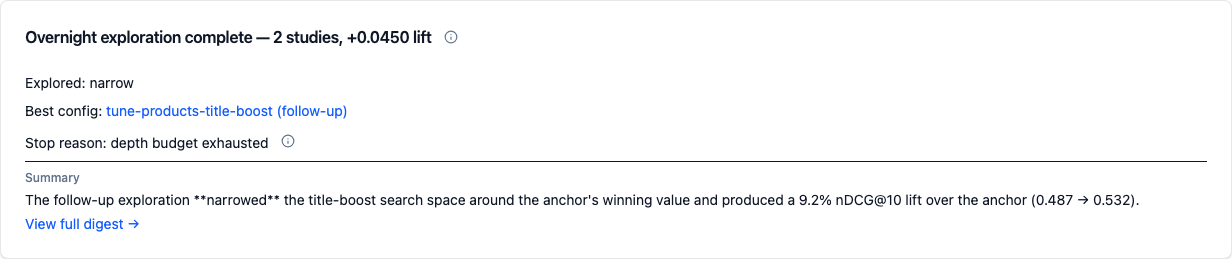
The morning card is the glance. The existing chain panel still mounts mid-page and surfaces the per-link detail (the table of links, per-link strategy badges, per-link metrics) for when you want to walk the chain link by link.
You'll also notice a Strategy line inside the linked-entities row of EVERY study that runs under an explicit strategy — "Strategy: Refine same knobs" or "Strategy: Try suggested follow-ups". It's read-only; the strategy is locked at study creation and inherited verbatim by every chain descendant. To switch, create a new study.
Where to go next¶
Tune more than the demo template¶
The tutorial registered product_search.j2 — a deliberately minimal
demo template. RelyLoop ships a curated runnable template library
covering function-score decay, bool boosting, and phrase rescore on
ES/OpenSearch + edismax basic and recency-decay on Solr. Each library
template ships with a checked-in .search_space.json starter and a
copy-paste registration block.
samples/templates/README.md— the four runnable ES/OpenSearch templates (multi_match_basic,function_score_decay,bool_boosted,rescore_phrase) with per-template "when to use", expected metric behavior, and a copy-pastecurlregistration block per template.samples/templates/solr/README.md— the two runnable Solr templates (edismax_basic,boost_decay).
Look up a specific parameter¶
Each tunable knob has a per-engine reference page with native + unified names, valid ranges, "when to tune", caveats, and the templates that declare it.
docs/06_vendor_docs/elasticsearch-tunable-params.mddocs/06_vendor_docs/opensearch-tunable-params.md(covers OpenSearch's hybrid normalization-processor — NOT the ESrrfretriever)docs/06_vendor_docs/solr-tunable-params.md(grounded in the checked-in Solr 9 / 10 ref-guide source)
The rest of the project¶
- The full feature set is in
docs/02_product/mvp1-user-stories.md. - The architectural decisions are in
docs/01_architecture/— start withsystem-overview.md. - The umbrella product spec is at
docs/00_overview/relyloop-spec.md. - File feedback or bug reports at GitHub Discussions.
Welcome to RelyLoop.